3D Print Calculator Web / Quotes
How-to guideSave, view and load a quote
Version 1.8 · Updated · View changes
A saved quote keeps its calculated price and settings.
Screenshots use sample data. Your prices, license level and settings may differ.
Before you begin
- Review the current quote and make sure your license includes saved quotes with capacity remaining.
Procedure
- Click Quote total in the bottom strip to open the full cost breakdown.
- Enter a recognizable quote name.
- Choose Save in the app header. Saving depends on your license and quote limit.
- Check the quote number shown in the panel, such as Q-1001.
- If you have Plus or higher and need a custom sequence, choose Change and set the prefix and starting number. Reusing an existing number asks you to confirm replacement before saving.
- From the Basic level, tick Auto-save changes to this quote once the quote belongs to a saved quote. Your changes then go back into that quote as you make them. It is off until you turn it on, and it never creates a new quote.
- Open Quote → Saved quotes to find saved results. Click a quote name to load it; use the saved-quote details to review attached files.

The saved-quotes list shows jobs and their totals. Open it from Quote → Saved quotes. Open full size - Loading a quote replaces the current quote inputs and costs with the saved settings.
- Read the prompt if the current quote has unsaved changes.
- Your current printer and filament lists are kept; the app matches the saved job to entries in those lists where possible.
- To put a saved quote away, open Your quotes and choose Archive. Confirm the prompt. Its files are kept, shared links stop working, and it still counts toward your saved-quote limit.
- Choose Archived quotes in the Show filter to find it. Click its name to view the saved result, or choose Restore to return it to the active list before editing. Share it again if you need a new customer link.
- To remove it completely, choose Delete permanently and confirm. The saved quote, attached files and shared links are removed together. This cannot be undone in the app; existing downloaded backups are not changed.
Check your result
The quote appears in Quotes with the expected name, saved date and total.
If you need more help
If you cannot complete these steps or the result differs from the check above, create a support ticket with the steps tried and any message shown.
Workflow at a glance
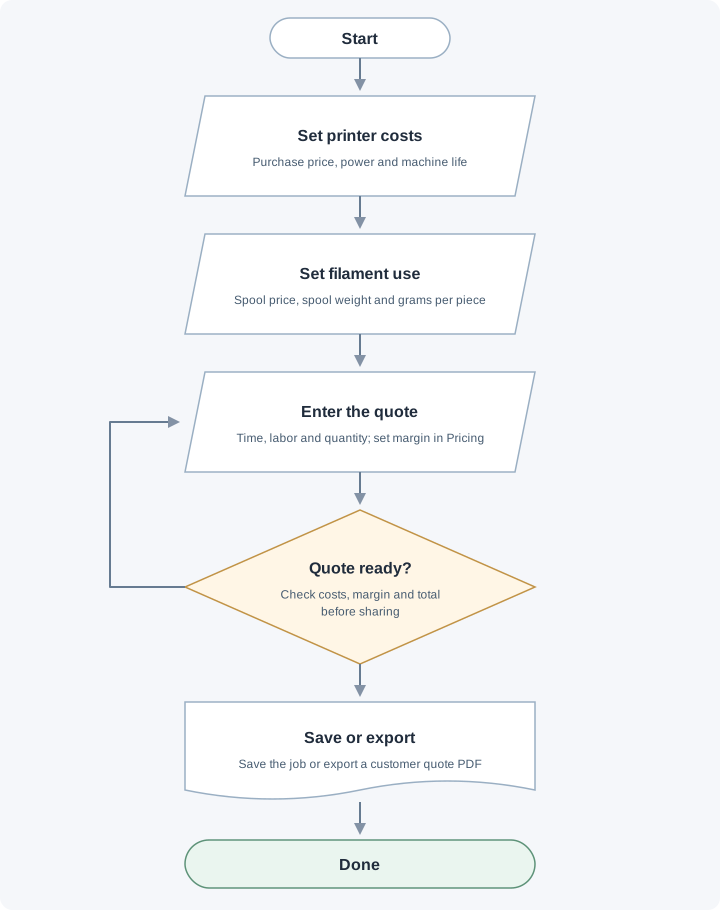
Set printer costs and filament use, enter the quote, then review costs and margin. Revise the quote if needed before saving or exporting the quote.
Change log (9 entries)
- Version 1.8
Updated navigation, header Save and bottom pricing/readiness instructions for the consolidated workspace.
- Version 1.7
Added archive, restore and permanent deletion instructions, including shared links, attachments and storage limits.
- Version 1.6
Tightened image frames and spacing while retaining full-size enlargement.
- Version 1.5
Reduced inline diagram previews while keeping full-size enlargement.
- Version 1.4
Replaced workflow cards with flowcharts using input, decision, document and start/end symbols, labeled branches and revision paths.
- Version 1.3
Separated procedures into individual numbered actions and kept screenshots beside the relevant steps.
- Version 1.2
Added quote numbers, auto-save and the Current Price panel.
- Version 1.1
Expanded the article layout to use the full available page width.
- Version 1.0
Started change tracking for the current article. This version includes structured guidance, topic tags, app screenshots, a workflow diagram.
Did this article solve your problem?
Loading feedback…