3D Print Calculator Web / Account and troubleshooting
TroubleshootingWhy is a feature locked?
Version 1.4 · Updated · View changes
Feature access follows your account’s license.
Screenshots use sample data. Your prices, license level and settings may differ.
Symptoms
- A feature is visible but locked, or access differs from what you expected.
Possible causes
- The current license level may not include the feature.
- A subscription may have lapsed or a paid period may be overdue.
Checks and resolution
- Choose the locked feature to see the license requirement shown by the app.
- Check the license level and paid period in the account menu.
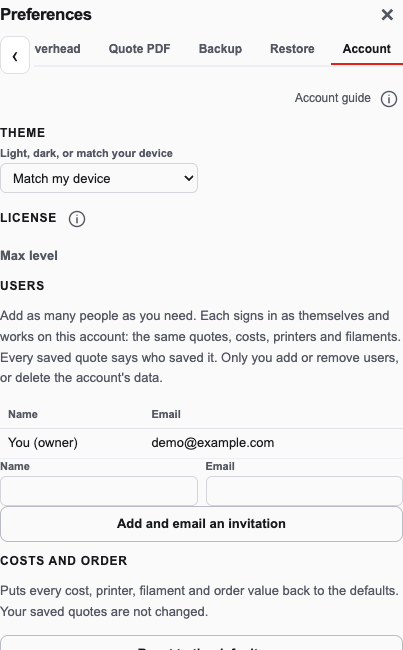
Preferences → Account shows the current license level. This demo has Professional access; your own level may differ. Open full size - After changing your license, review the app’s displayed level. If access still looks wrong, use Support site in the account menu.
- A lapsed subscription locks paid features. Your saved data is shown locked and returns if you renew within 15 days of the paid period ending; after that it is permanently deleted (you get an email 3 days before).
Verify recovery
- Reopen the affected feature and confirm that access matches the current license.
When to contact support
If the issue remains, create a support ticket. Describe the expected result and the exact message you see; review the prefilled app details and viewed articles before submitting.
Workflow at a glance
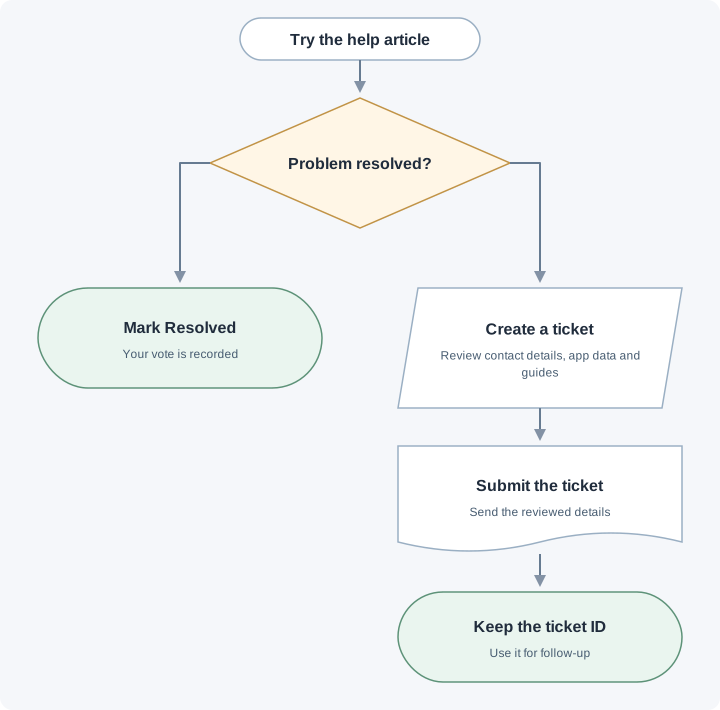
Read and try the guide. If it resolves the issue, mark Resolved. Otherwise create a ticket, review the prefilled details and articles, then submit and keep the reference.
Change log (5 entries)
- Version 1.4
Tightened image frames and spacing while retaining full-size enlargement.
- Version 1.3
Reduced inline diagram previews while keeping full-size enlargement.
- Version 1.2
Replaced workflow cards with flowcharts using input, decision, document and start/end symbols, labeled branches and revision paths.
- Version 1.1
Expanded the article layout to use the full available page width.
- Version 1.0
Started change tracking for the current article. This version includes structured guidance, topic tags, app screenshots, a workflow diagram.
Did this article solve your problem?
Loading feedback…