3D Print Calculator Web / Getting started
How-to guideInclude shop overhead in a quote
Version 1.2 · Updated · View changes
Add the costs of running the shop, grouped, to the quotes you choose.
Screenshots use sample data. Your prices, license level and settings may differ.
Before you begin
- Know roughly what your monthly shop costs are, and how many hours a month your printers run.
Procedure
- Open the account menu, choose Preferences, then open Overhead.
- Choose a profile: Hobbyist is available on every level; part-time and full-time shop profiles start at Basic. Every level can enter its own amounts over a profile.
- Enter how many machine hours you print in a typical month. Monthly costs are spread over these hours, so a longer print carries more of them.
- Enter Facility costs: rent, utilities, internet and insurance. Leave amounts blank when they do not apply.
- Enter Administration costs: software, accounting, marketing and licenses.
- Enter Consumables and tooling costs: tools, supplies and filament storage.
- Enter Order fulfilment costs per order, such as packaging and shipping supplies.
- Enter Transaction fees as percentages of the selling price, such as payment processing and marketplace fees.
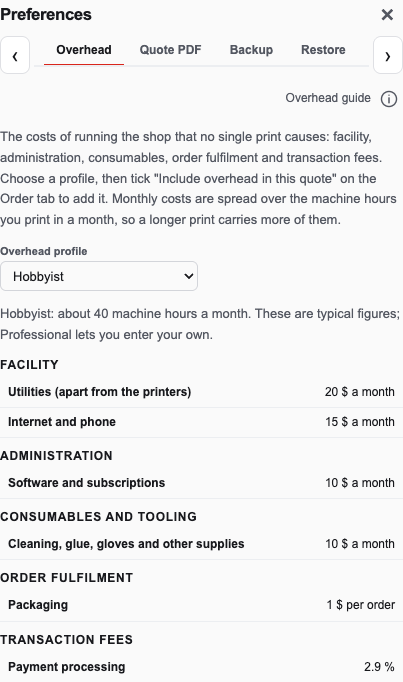
Overhead is grouped: facility, administration, consumables and tooling, order fulfilment and transaction fees. Open full size - On the Quote tab, open Pricing and tick Include overhead in this quote. Nothing is added until you do.
- Check the Price panel. Each group appears as its own Overhead line. Per-order costs are spread over the pieces, and transaction fees are built into the price so your margin is kept after them.
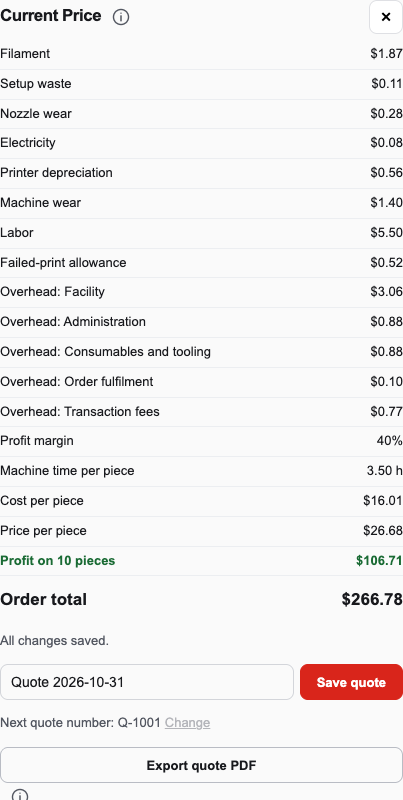
Each overhead group is its own line in the price. Open full size
Check your result
With Include overhead in this quote ticked, the Price panel shows an Overhead line for each group that has a cost, and the price per piece rises. Untick it and the lines disappear.
If you need more help
If you cannot complete these steps or the result differs from the check above, create a support ticket with the steps tried and any message shown.
Change log (3 entries)
- Version 1.2
Tightened image frames and spacing while retaining full-size enlargement.
- Version 1.1
Separated procedures into individual numbered actions and kept screenshots beside the relevant steps.
- Version 1.0
New article: shop overhead in a quote.
Did this article solve your problem?
Loading feedback…